
Working with WinCC and TIA Portal doesn’t have to mean manually recreating your entire tag database. The SIMATIC SCADA Export Tool provides a structured and robust approach to providing WinCC with tags directly from the PLC, eliminating tedious manual data entry and reducing the risk of errors.
Why Use SIMATIC SCADA Export?
The traditional approach of manually creating tags in WinCC is time-consuming and error-prone, especially for large projects with hundreds or thousands of tags. The SIMATIC SCADA Export method offers several key advantages:
First, there’s no need for physical hardware or even simulated hardware to read from. As long as your TIA Portal project is compiled, you’re ready to export. This means you can set up your WinCC tag database during the design phase, long before hardware arrives on site.
Second, the export process maintains the structure and organization of your PLC tags, including User-Defined Types (UDTs) and nested structures. This preserves the logical architecture you’ve carefully designed in your PLC program.
Step-by-Step Export Process
Exporting from TIA Portal
- In TIA Portal, locate your PLC in the project tree
- Right-click on the PLC
- Choose Export to SIMATIC SCADA from the context menu
- Select a location to save the export file
The export creates a compressed file containing all your tag information. Make note of where you save this file as you’ll need it in the next step.
Importing into WinCC
With your export file ready, you can now bring your tags into WinCC:
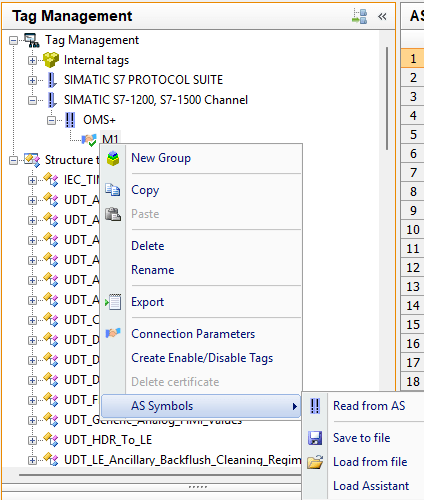
- In WinCC, open the Tag Manager
- Right-click on the PLC connection
- Choose AS Symbols
- Select Load From File
.zip. By default, the file browser doesn’t show zip files, which can be frustrating if you don’t know this quirk. Simply change the file type dropdown to show all files or specifically zip files.
- Navigate to your exported file and click Load
Accessing Your Imported Tags
Once the symbols are loaded into WinCC, you’ll need to navigate to the AS tag section to work with them. Look for the small file tree icon with an arrow in the top right corner of the Tag Management tab on the left side. Clicking this icon switches you to the AS tag view where all your imported tags are waiting.
Creating Tags from AS Symbols
Here’s where the process requires some attention to detail. The tags you’ve imported are not automatically active in WinCC. They exist as available symbols that you need to selectively activate.
In the AS tag section, you’ll see all the tags you’ve imported via the AS import process. To create actual working tags in the PLC connection, you need to tick the Access checkbox for each structure and tag you want to use. This step can be tedious, especially when setting up a project for the first time, but it gives you control over which tags are actively consuming communication resources.
Working with Structures and UDTs
If you want to create entire sections of tags that reference UDTs in the PLC, you’ll need to create corresponding structures in WinCC first. This is actually much easier than it sounds, and it’s a huge time-saver for projects with repeated equipment types.
Creating WinCC Structures from PLC UDTs
Exit the AS symbol section and return to the normal Tag view. Then click on your PLC connection. At the bottom of the central window, you’ll see several tabs. Switch to the AS Structures tab.
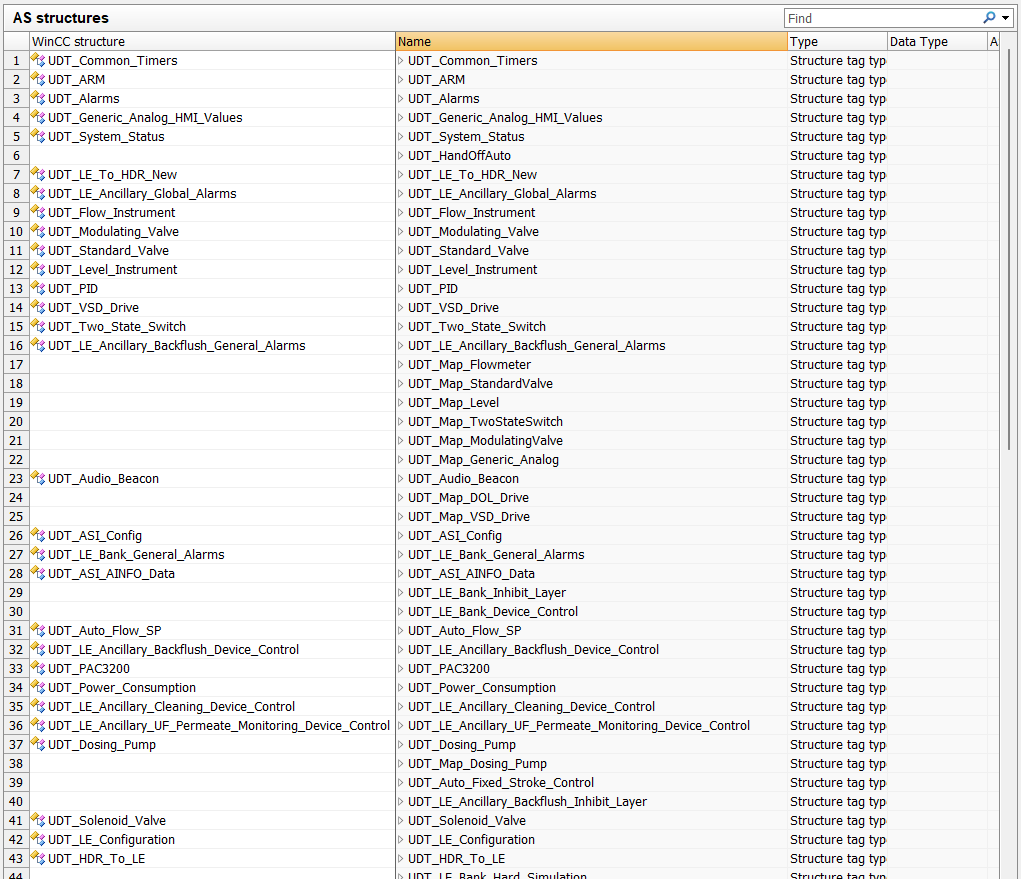
This view displays all the structures defined in your PLC. The leftmost column shows WinCC’s alias for each structure. If this column is empty for a particular structure, it means there’s no corresponding WinCC structure created yet.
To create a WinCC version of a PLC structure:
- Right-click on the row containing the structure you want
- Choose Create Structure
This action creates a copy of the structure in WinCC with all the correct data types and memory offsets applied automatically. The beauty of this approach is that it perfectly mirrors your PLC’s data organization.
Activating Structured Tags
Once you’ve created the WinCC structures, return to the AS symbol view. Now you can tick an entire structure instance with a single checkbox, which automatically creates all child variables and nested structures within that UDT. This is far more efficient than creating hundreds of tags individually.
Handling Structure Updates
Industrial automation projects evolve, and your PLC structures will change over time. When you modify a UDT in the PLC, you’ll need to update the corresponding WinCC structure to capture the new elements.
The recommended approach is straightforward but requires a bit of housekeeping:
- Delete the structure from the WinCC structures list
- Re-create it using the process described above
- Return to the AS view and re-tick the instances
Best Practices
Through working with this workflow, several best practices have emerged that can save you time and frustration:
Always compile before export. The SIMATIC SCADA Export Tool reads your compiled PLC data. If your project has errors or hasn’t been compiled recently, the export won’t reflect your current program structure.
Organize your PLC structures thoughtfully. The structure you create in TIA Portal will be reflected in WinCC. Taking time to organize your UDTs logically in the PLC pays dividends when you’re working in WinCC.
Document your active tags. Keep notes on which structures and tags you’ve activated in WinCC. This documentation becomes invaluable when you need to update structures or troubleshoot communication issues.
Test incrementally. Rather than importing everything at once, start with a small subset of tags to verify your communication is working correctly. Then scale up once you’ve confirmed the basics are functioning.
Conclusion
The SIMATIC SCADA Export workflow represents a significant improvement over manual tag creation. While there’s a learning curve, particularly around understanding the relationship between AS symbols, WinCC structures, and PLC UDTs, the investment pays off in reduced development time and fewer errors.
The ability to work offline, without physical hardware or even simulation, means you can develop your WinCC application in parallel with your PLC programming. This parallel development can substantially reduce overall project timelines.
For engineers working with complex industrial systems, mastering this workflow is an essential skill that transforms WinCC development from a tedious data-entry exercise into an efficient, structured process.